Managing customers via Dashboard
The PayRex dashboard allows you to create and manage your PayRex merchant's customer resources. If you are not familiar yet with customer resource, you can check this overview.
Customer Listing
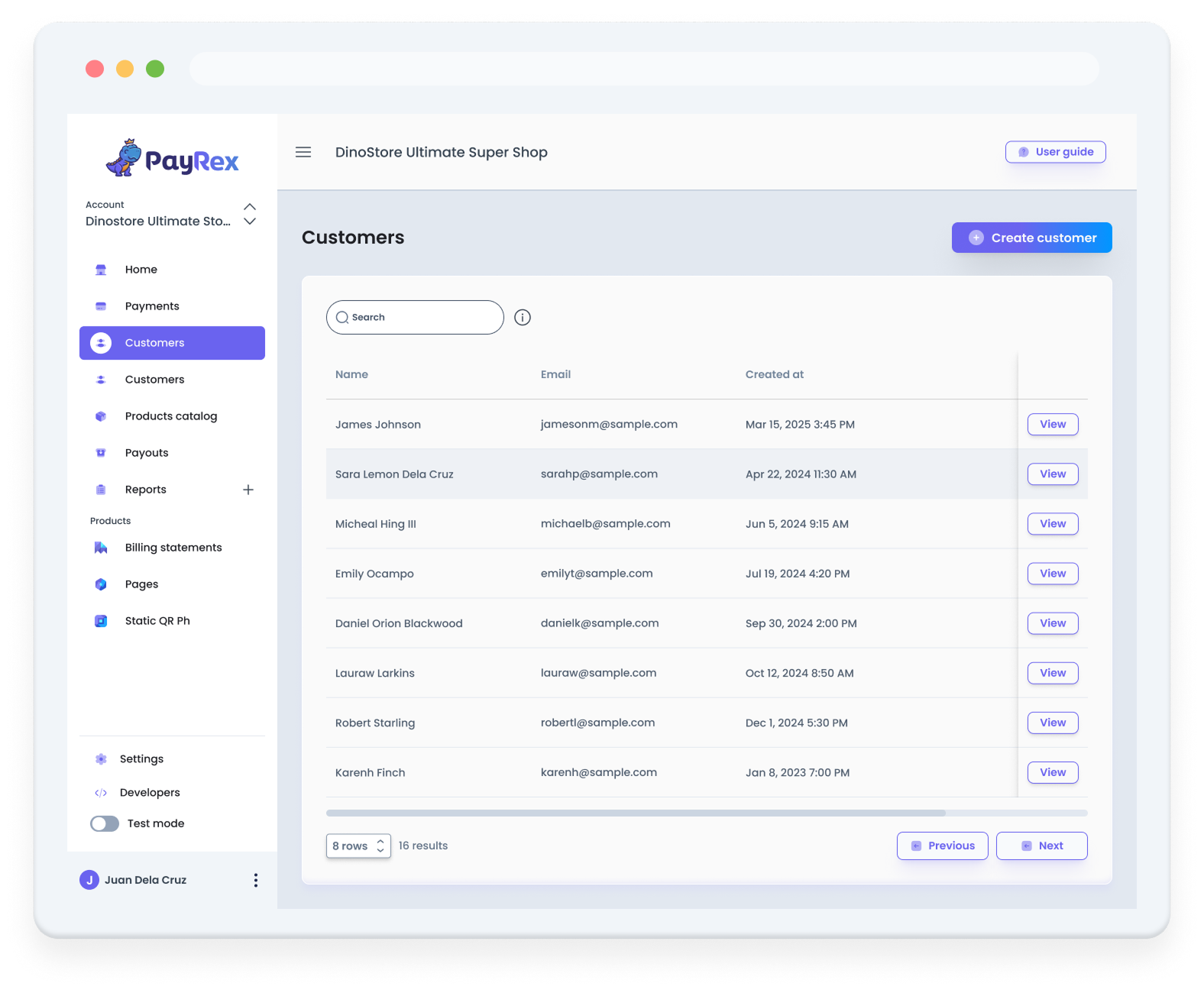
The customer listing contains all your customers whenever you create a customer via billing statement, API or from the Dashboard.
- Name: The name of your customer. It could be a person or another business that will pay you.
- Email: The customer email address during billing statement or payment creation.
- Created at: The date and time the customer resource was created.
You can also search for a customer by name, e-mail address, or its metadata.
Customer Details
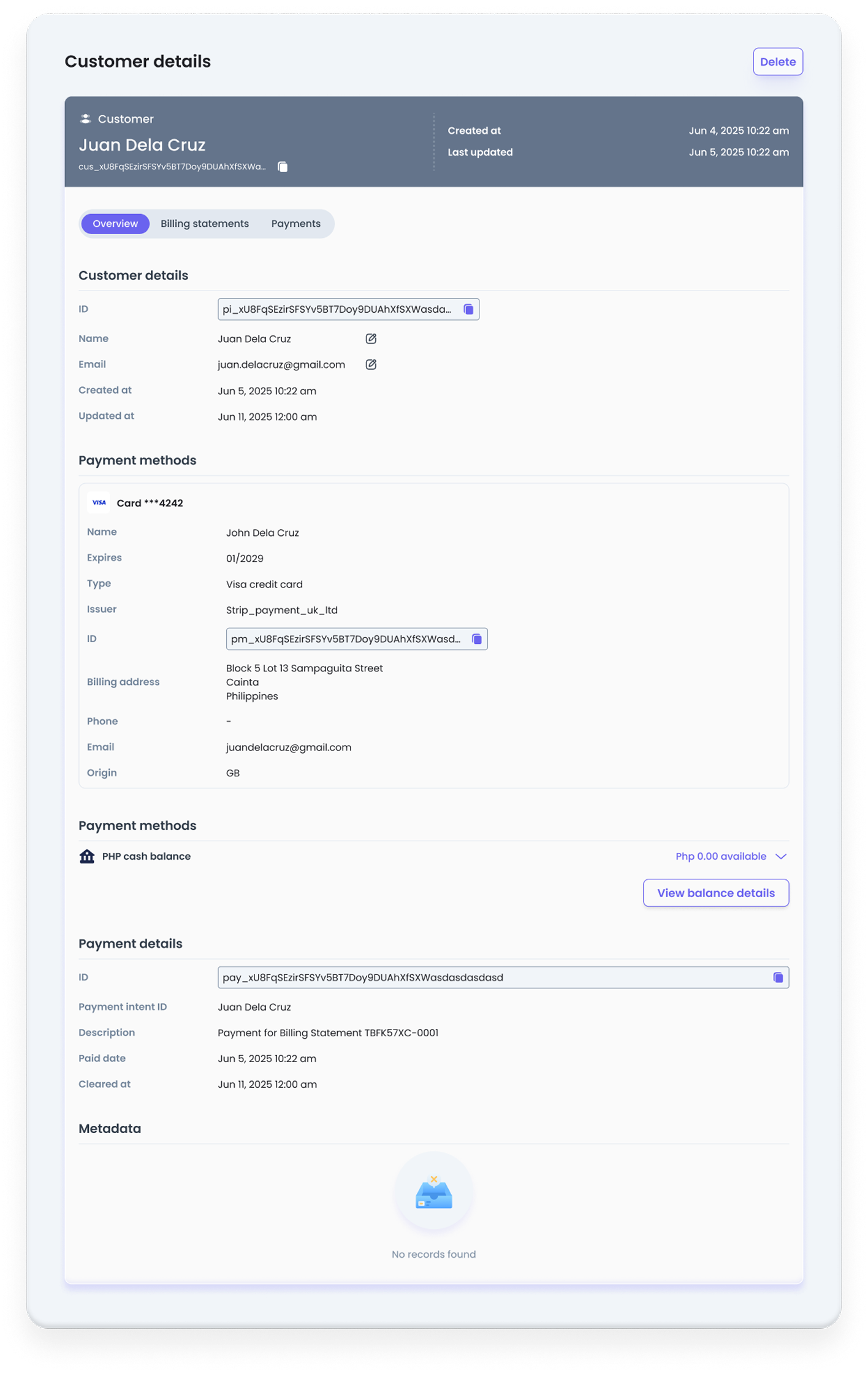
The customer details page allows you to view a particular customer's details, payment methods, payment history, and billing statements.
Overview
The overview section contains the basic details of a customer.
- ID: The PayRex auto-generated ID unique to a customer. This is used when viewing, updating, or deleting customers via API or Dashboard.
- Name: The name of your customer. It could be a person or another business that will pay you.
- Email: The customer email address during billing statement or payment creation.
- Created at: The date and time the customer resource was created.
- Last updated: The date and time the customer resource was last updated.
Payment Methods
A customer resource can store a customer's payment method, such as a debit/credit card. If you will use the card tokenization feature of PayRex, you can store the cards used by your customers, and you can view these payment methods in this section.
Metadata
The metadata section allows you to store related information that is visible only to you and your team.
To learn more about how you can take advantage of our metadata feature to improve your customer profiling here.
To learn more about metadata, you can check this guide.
Billing Statements
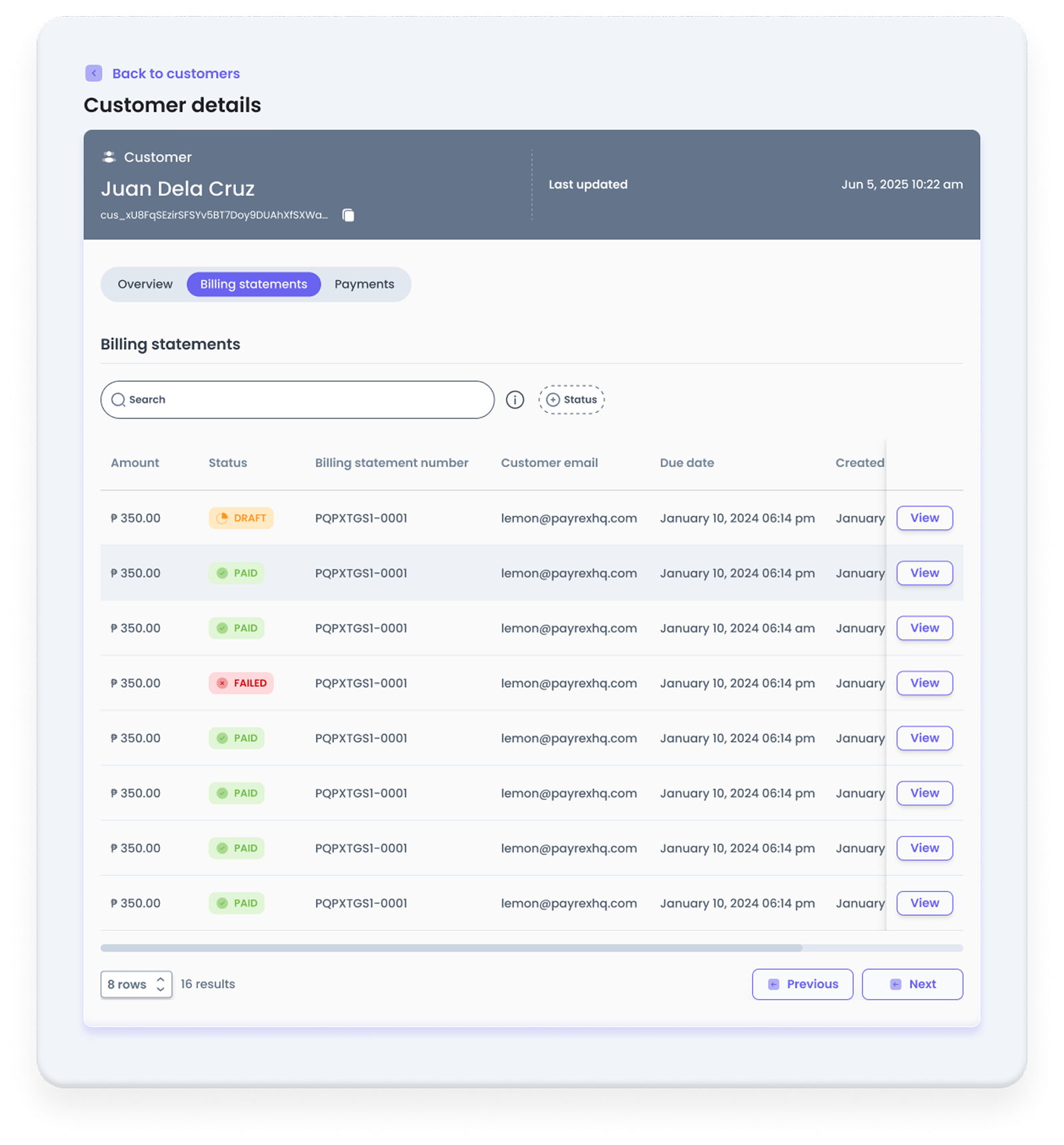
The billing statements section allows you to list the billing statements associated with your customer. You can search, filter, and view a specific billing statement from this section.
Payments
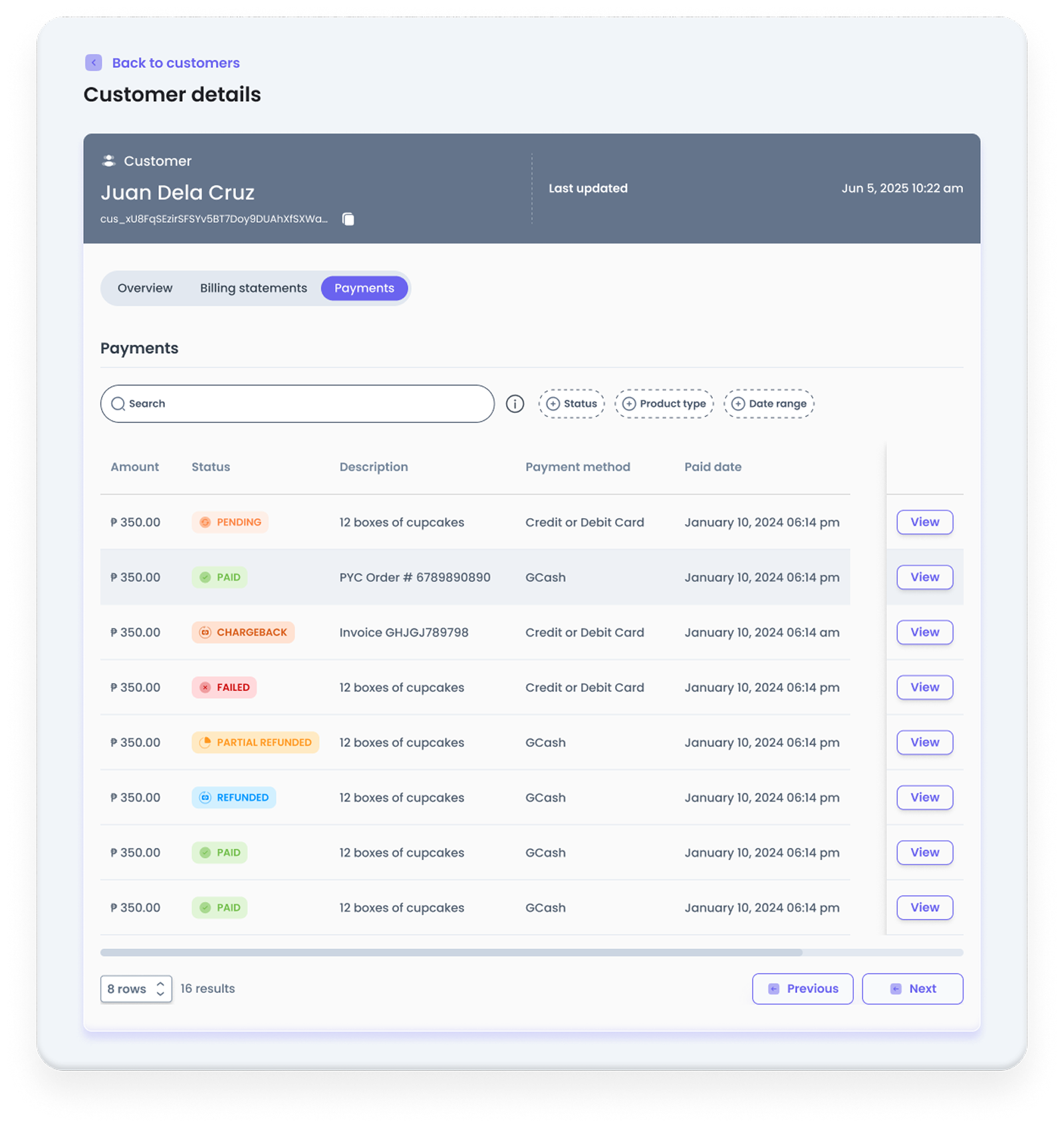
The payments section lists all the payments associated with your customer. You can search, filter, and view payments from the listing.
Managing Customers
You can use your dashboard to create, edit, and delete customers without writing code.
Create a customer
- Login to your dashboard and go to the Customers resource.
- Click the Create customer button, and input your customer's name and email address.
After creating the customer, you will be redirected to its details page, where you can update or delete the customer.
Update a customer
- On the customer details page, click the pencil icon.
- Edit the customer details or metadata, and click the save button.
Your changes should immediately reflect on the record.
Delete a customer
- On the customer details page, click the Delete button.
- After ensuring that the resource belongs to the customer you want to delete, click the confirm button.
Make sure to double-check the customer record you are trying to delete, as it cannot be undone once you confirm the deletion. You have to manually create the record again or wait for your customer to make another PayRex transaction to automatically generate their customer record.